Watch: Build and Run a Complete Show (4:31) · All videos
Add steps
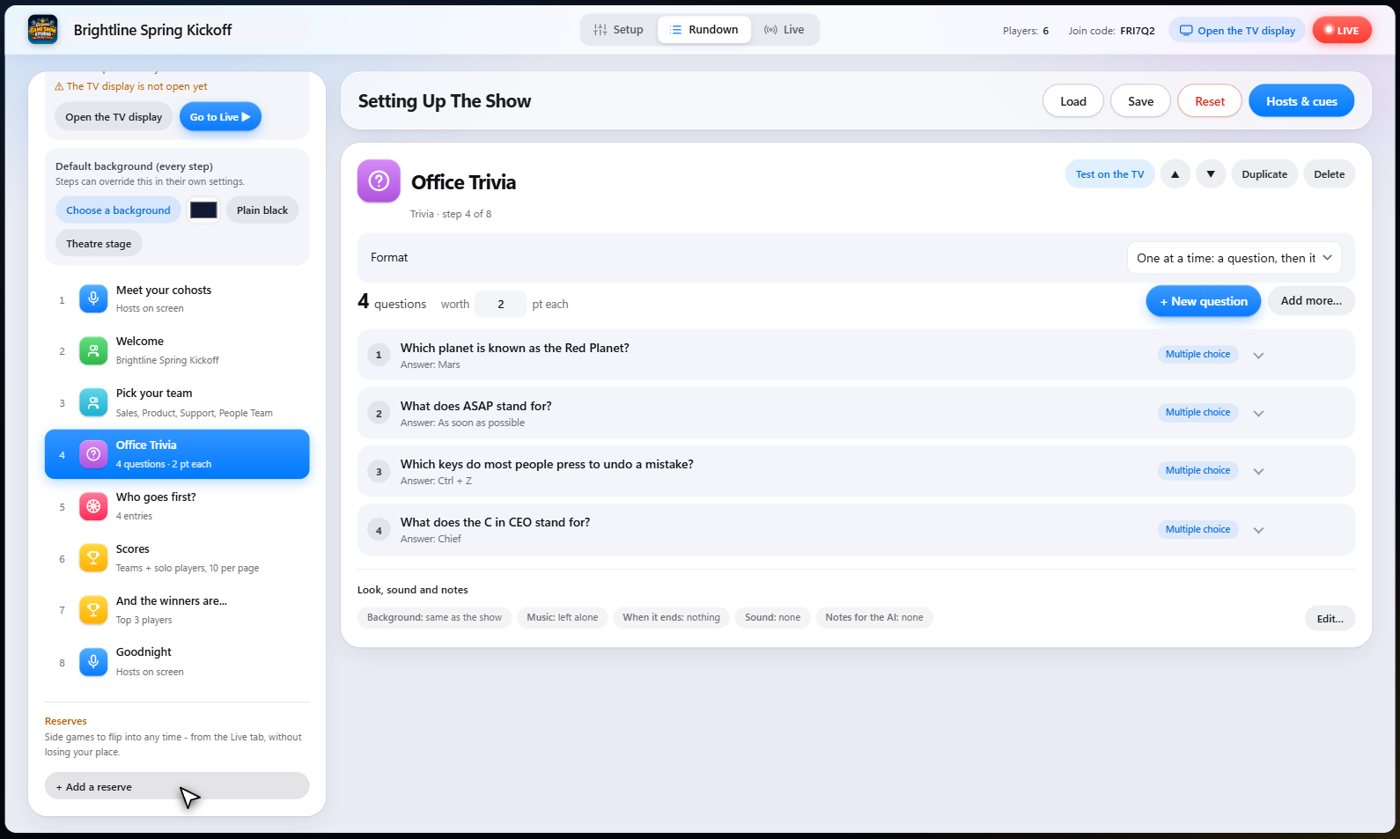
Use the Add menu in the Rundown to add a step. Pick from trivia, bingo, a wheel, polls, drawing games, a reaction wall, cards, the scoreboard and more. Mix and match to fit your crowd.
- Open the Rundown tab and press Add.
- Choose a step. It joins the end of the list and opens on the right.
- Fill in its settings. Every step type is explained in its own guide.
A show to start with
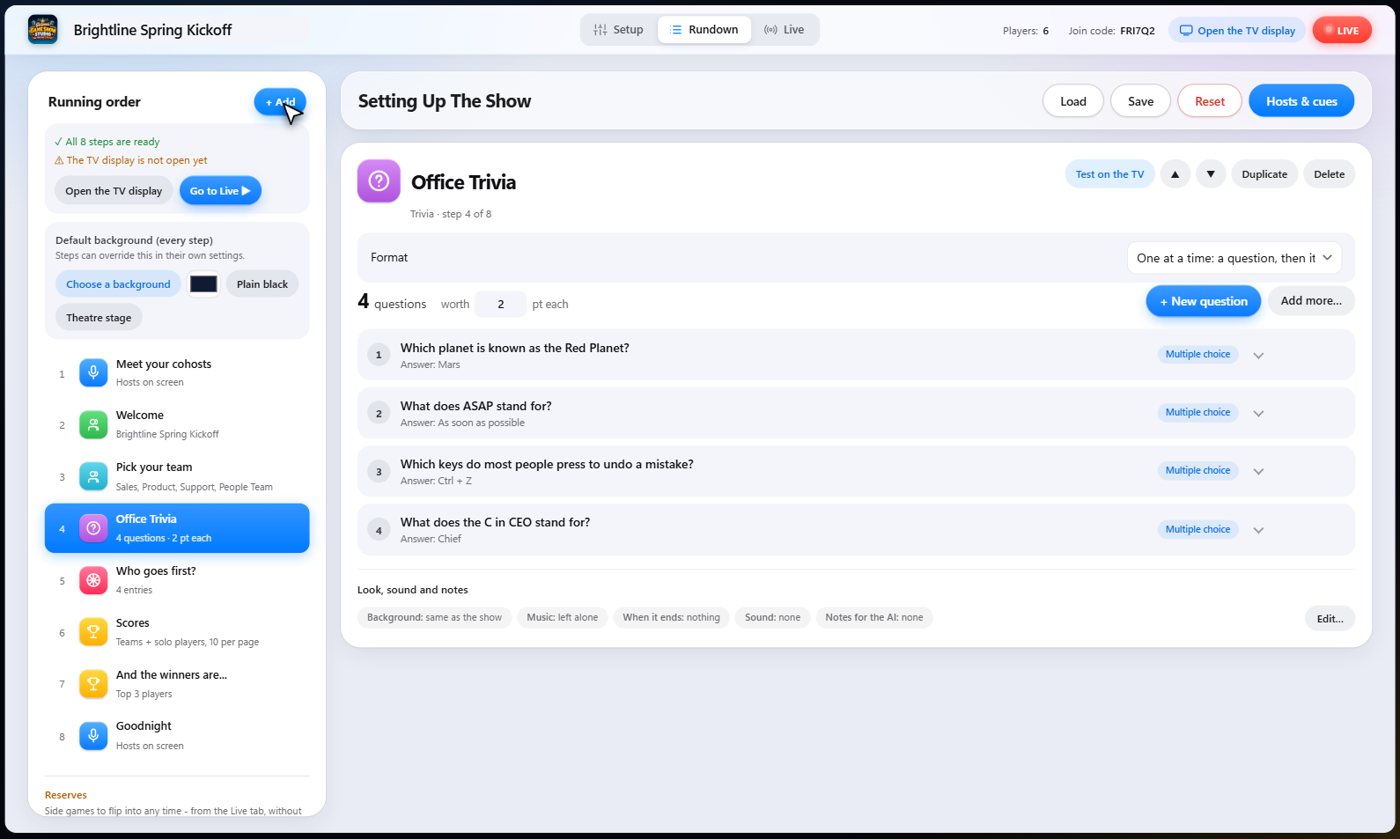
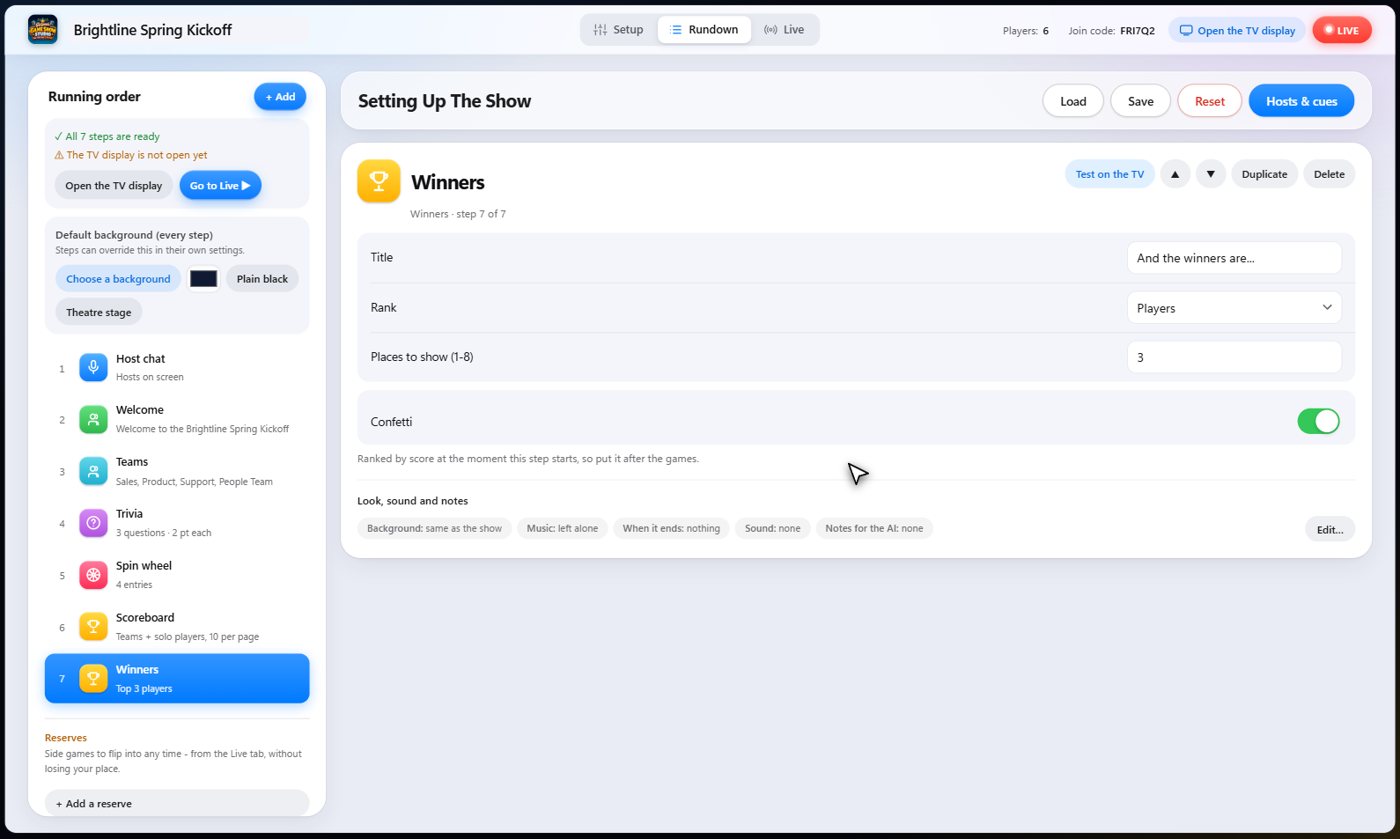
A short company kickoff is a good first show. Start with a host chat so the cohosts greet everyone, then a welcome screen with a title and a line for the guests, then teams, trivia, a wheel as a break between rounds, and finish with the scoreboard and the winners.
Tip The scoreboard and the winners work out the standings for you, so there is nothing to type.
Reorder, duplicate, delete
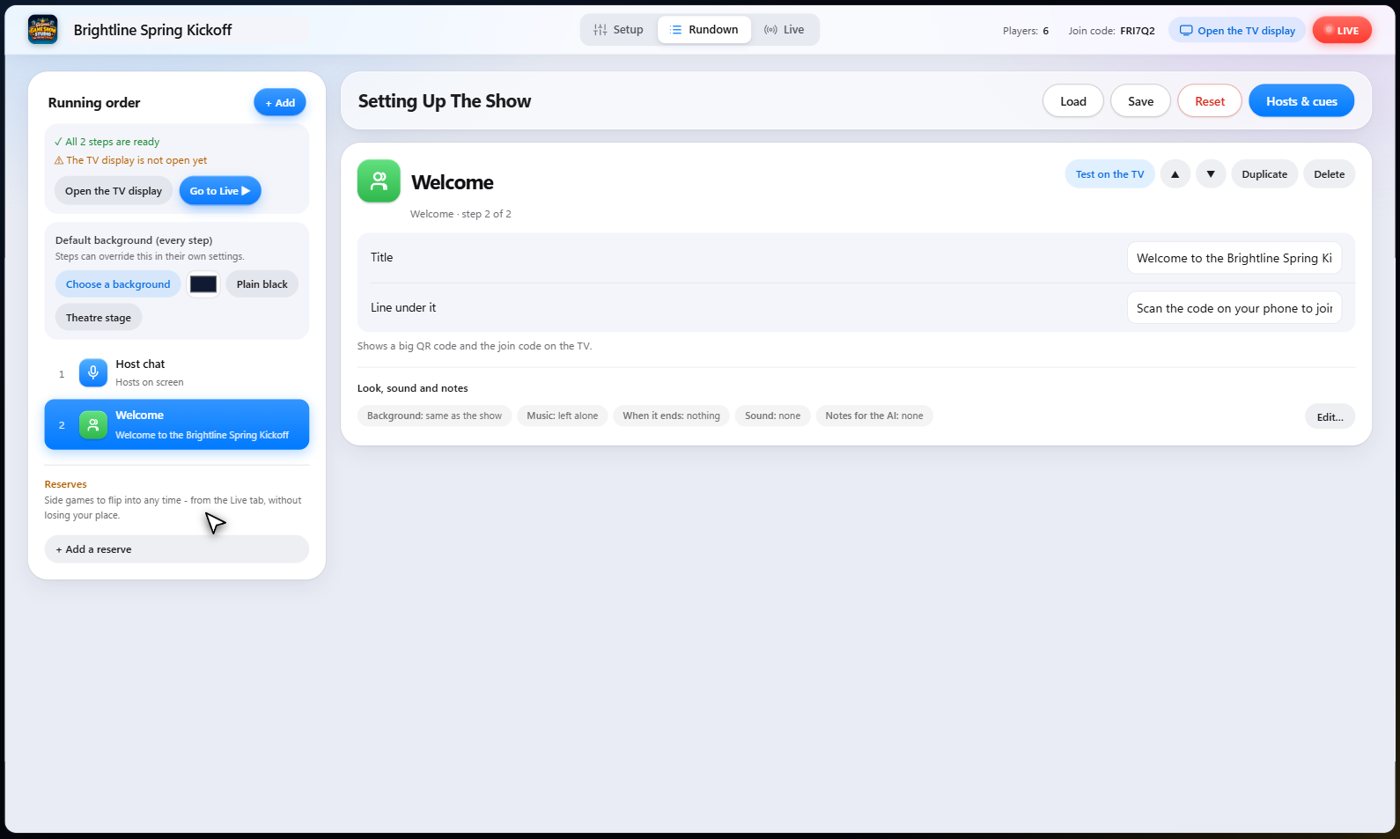
Select a step to open it. The arrows move it up or down the list, Duplicate makes a copy, and Delete removes it. Test on the TV previews a step on the TV.
The Ready check
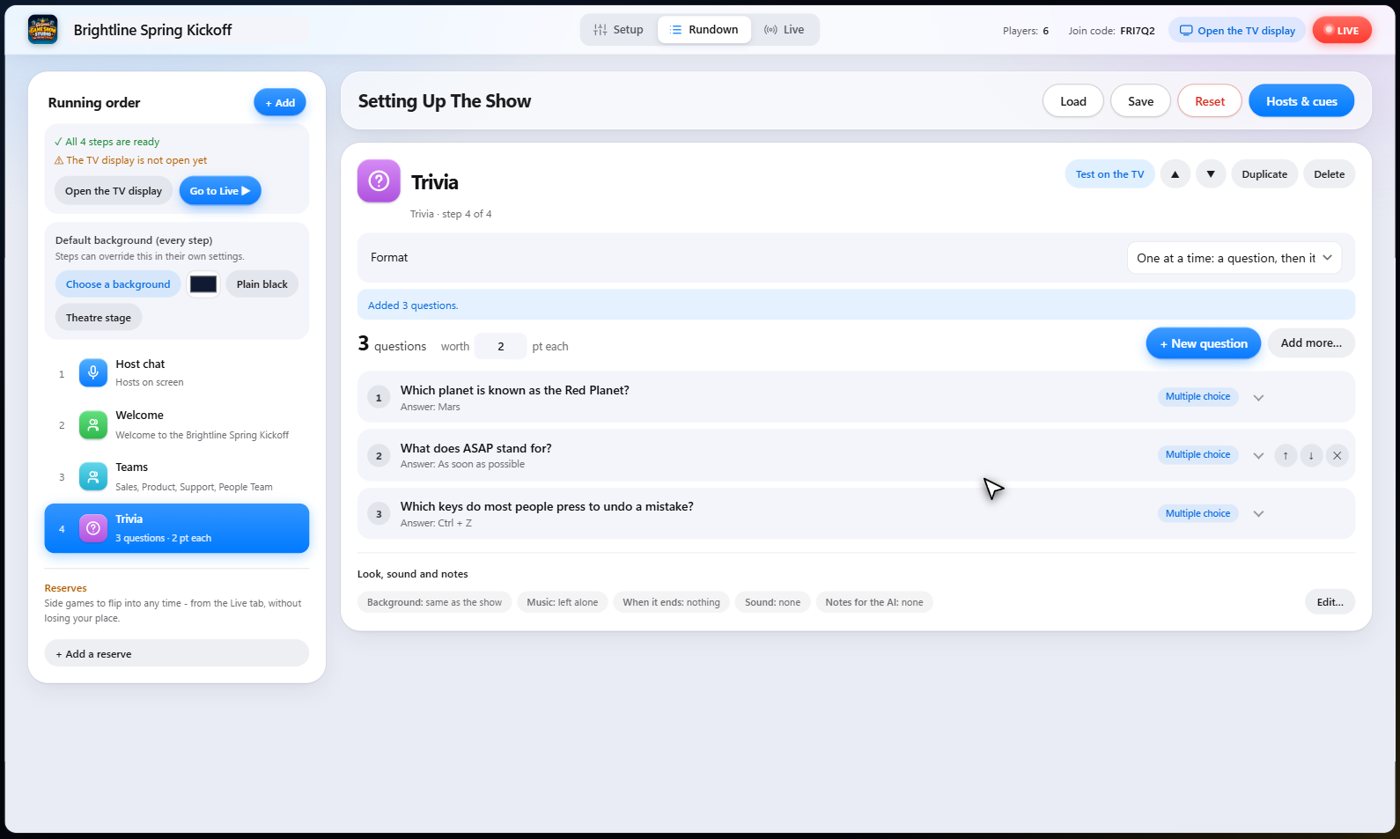
At the top of the Rundown, the Ready check tells you if anything still needs attention. When every step is ready, you are set. It also tells you whether the TV display is open yet.
Save and load
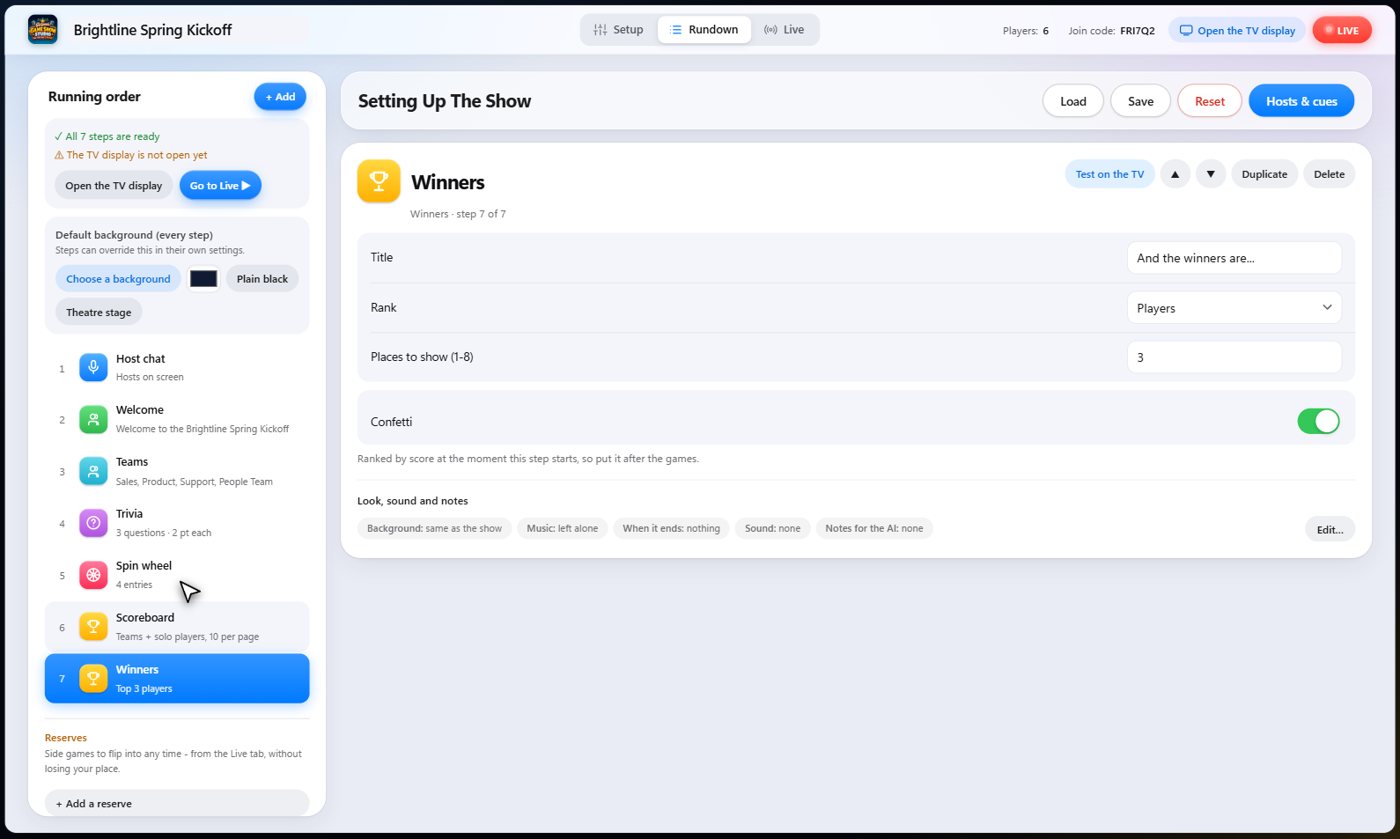
Save the show under a name, and you can load it into any other event without setting it up again. Next time, press Load and change only what is new. The default background, the cohosts and your cues are saved with it.
Reserves
Reserves are extra games you keep on standby. If your night runs long, or the room wants something different, flip into one from the Live tab at any time without losing your place.
Settings every step has
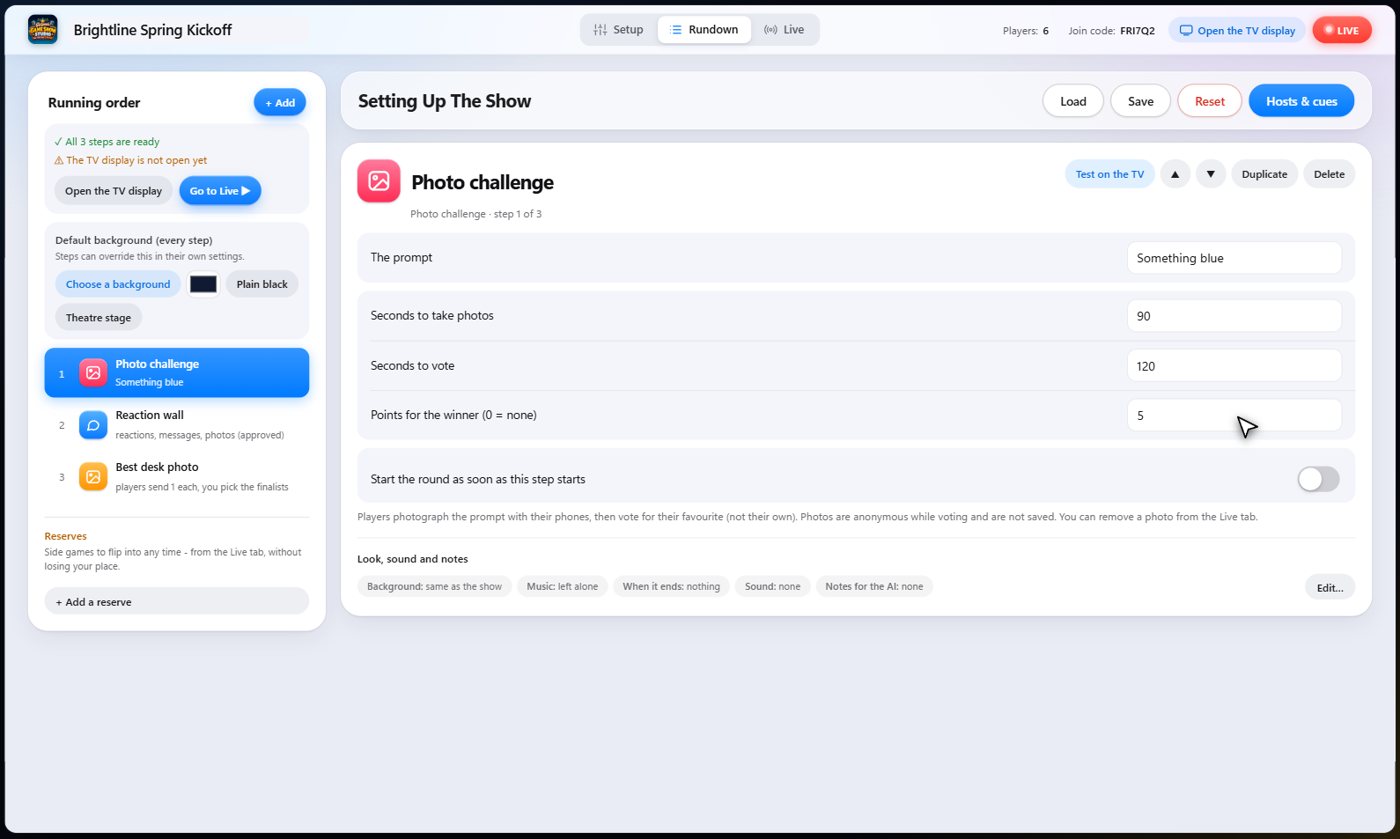
Every step has a Look, sound and notes row. Open it with Edit to give that one step its own background, music, a sound effect as it starts, and notes for the AI cohosts. Changes save as you make them. A step without its own background uses the show's default.
A default background for the whole show
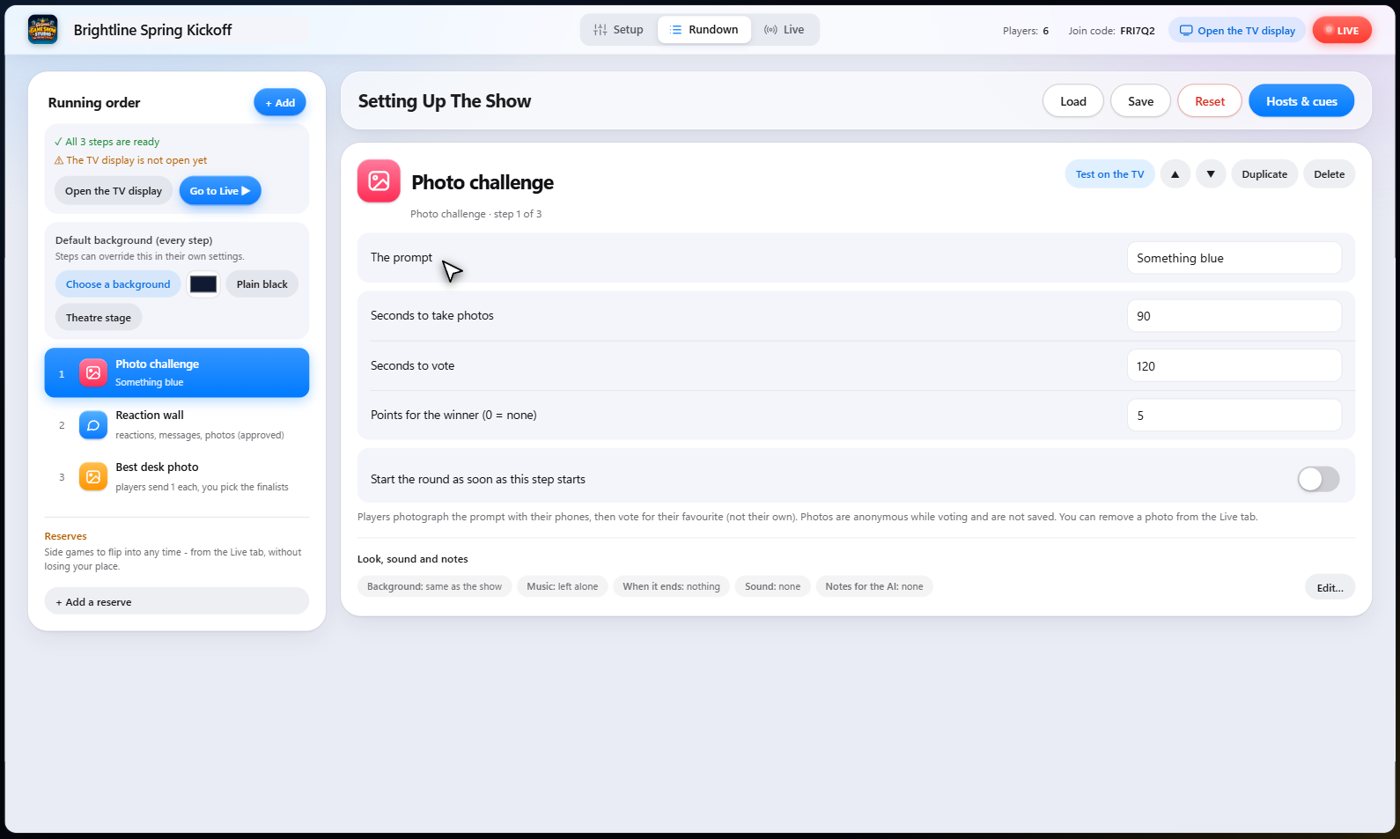
Under the step list, Default background (every step) puts one look behind everything. Choose a background from the library, pick a colour, or keep plain black or the theatre stage. The next guide, Backgrounds, music and media, shows how to search the library.
Something missing or unclear? Check the FAQ or browse all guides.